Erasebg

Practical inspiration

Explore erase bg examples free of visual clutter

A strong subject can get lost against a crowded room, an uneven wall or a distracting tabletop. These examples show where an erase bg edit could help, what to check around the edges and how to choose a background that fits the final use.

Free to start · no signup
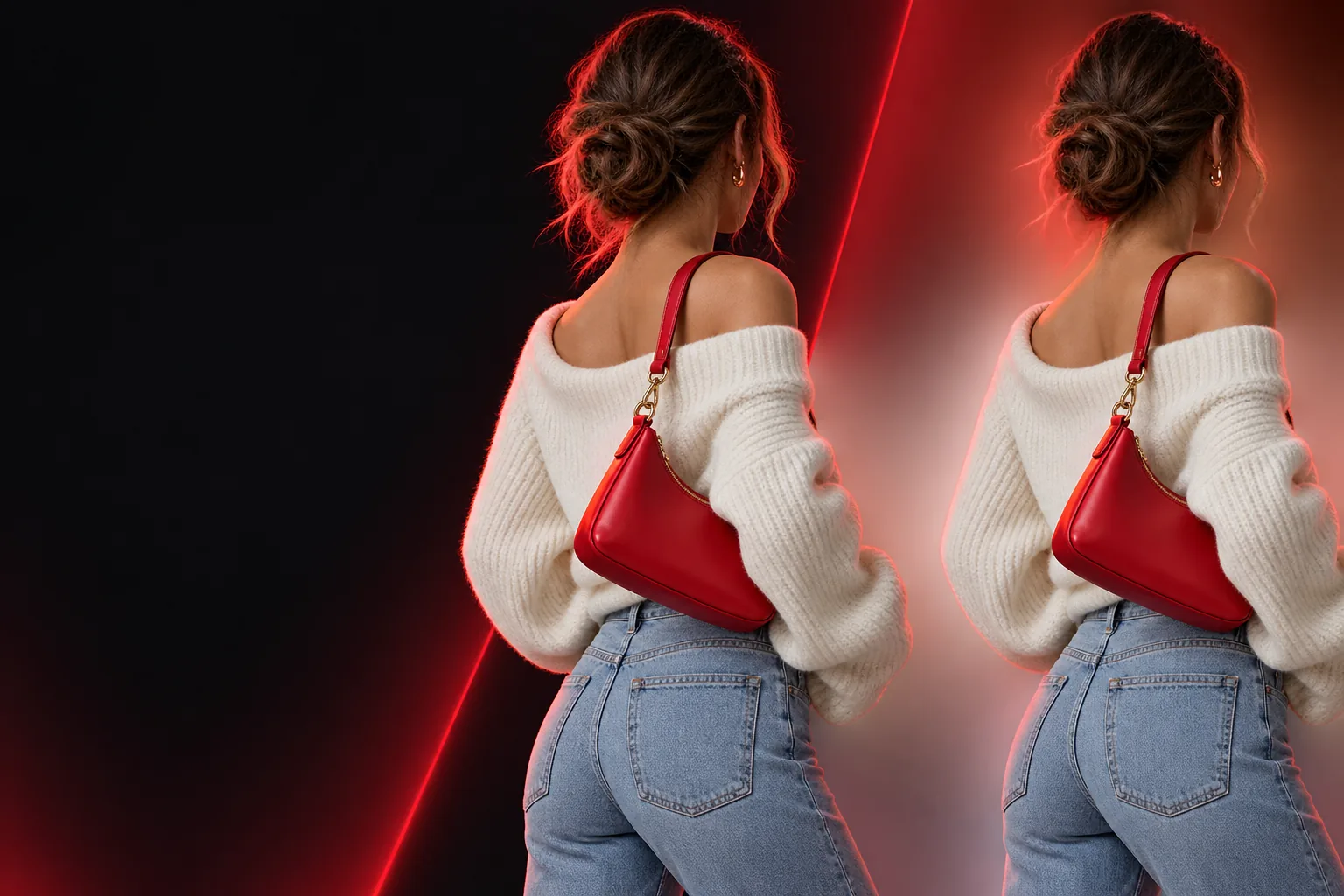
Erasebg landing image showing a background-removal example

Where clean cutouts make a difference

The same erase bg idea serves different goals. Decide whether the subject needs to stand alone or sit naturally in a new scene.

Small-shop photographer

A handmade item is sharp, but the kitchen counter behind it competes with its shape and color.

A simpler product image can make the item easier to place in a catalog; inspect reflective edges before using the result.

remove bg hd

Presentation designer

A speaker portrait needs to sit on a slide whose colors differ from the original photo.

A cutout gives the designer room to test layouts, while a soft edge helps the portrait avoid looking pasted on.

remove bg canva

Social creator

A still image has a strong subject but too much detail behind text intended for a short-form post.

Separating the subject creates space for a caption, provided the replacement background keeps the text legible.

background remover for tiktok

Archive editor

An older JPEG portrait has compression marks along the shoulders and a cluttered original setting.

An erase bg pass can simplify the composition, but the editor should review the source artifacts rather than expect them to disappear.

How do I remove the background in a JPEG?

Three concrete workflows

Use these as planning examples, not as a promise that every source image will produce a perfect cutout.

Prepare a product image

Choose a well-lit photo with the whole object in frame. Try an erase bg edit, then inspect handles, transparent packaging and the contact shadow before placing the item on a plain background.

Place a portrait in a layout

Start with a portrait whose hair and clothing contrast with the setting. After separating the subject, preview it at the final display size and look for stray background color around fine edges.

Build a social graphic

Leave space for the headline in the intended crop. Test the cutout against the actual post color, then check that both the subject and text remain clear on a phone screen.
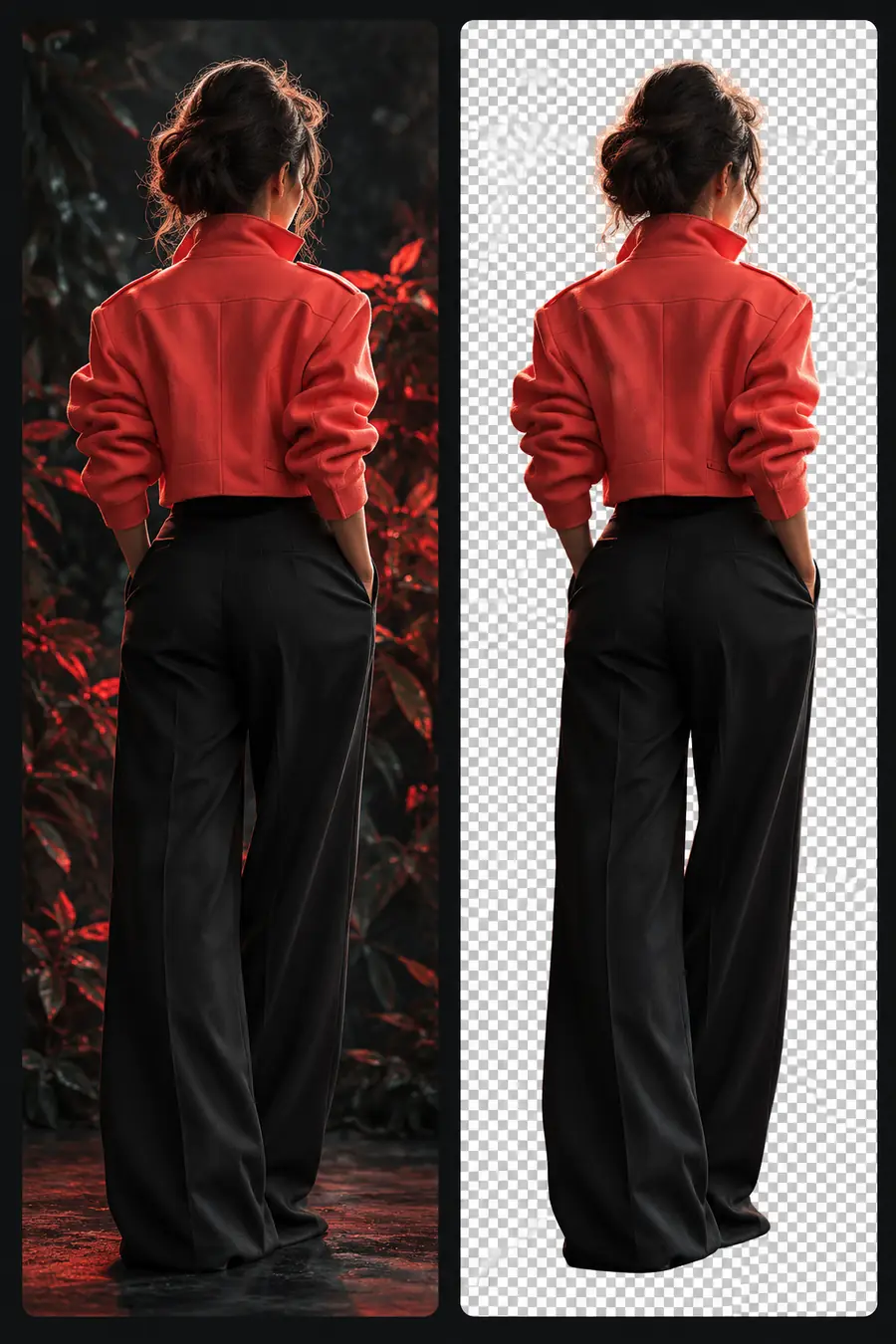
Example output: original photo and prepared cutout

This comparison is a review checklist for a portrait example, not a claim about a particular tool's export settings.

Original portrait Prepared cutout
1

Background

Original portrait

Room details remain visible behind the person.

Prepared cutout

The subject is separated for placement on another background.

2

Hair

Original portrait

Fine strands blend into the surrounding scene.

Prepared cutout

Strands need close inspection for missing detail or a visible halo.

3

Clothing edge

Original portrait

The original scene defines the shoulder outline.

Prepared cutout

The outline must still read naturally against a new color.

4

Shadow

Original portrait

Lighting belongs to the source environment.

Prepared cutout

A new composition may need a matching, restrained shadow.

5

Best review size

Original portrait

View the full photo to judge framing and focus.

Prepared cutout

Check both close up and at the intended publication size.

6

Next decision

Original portrait

Choose whether the photo needs editing at all.

Prepared cutout

Choose a setting that supports the subject rather than competing with it.

See the portrait idea in context

Background-removal reference

Illustrative portrait background-removal comparison
Illustrative portrait example for a cleaner composition
Portrait presentation idea

These are illustrative references, not a verified before-and-after export from the same source photo. Use an erase bg example to judge edge quality, then test your own image in its final layout.

Compliance notes before publishing

A clean background does not settle questions about rights, accuracy or whether the finished image meets a platform's rules.

No permission is supplied

Removing a background does not grant rights to use someone else's photograph, likeness, logo or product image.

WorkaroundUse images you own or have permission to publish, and keep a record of the source.

No automatic listing approval

A marketplace or advertiser may have its own requirements for backgrounds, image dimensions and faithful product representation.

WorkaroundCheck the destination's current image policy and review the finished listing before posting.

No guarantee of perfect edges

Blur, glass, fur and low contrast can leave missing pixels or traces of the old setting after an erase bg edit.

WorkaroundInspect the result against both light and dark backgrounds, then refine or replace a weak source photo.

No verified free export promise

Searching for free examples does not establish the price, access requirements or export terms of a separate editing service.

WorkaroundReview the service's current terms before relying on its output for a project.

Prepare an image for its next setting

Turn a useful photo into a clearer composition

Pick one subject and one destination before you edit. Whether you are exploring a portrait, a product or a post, compare the result with its original and check the edges at the size people will actually see.

  • Keep an untouched copy of the source.
  • Preview the result on its intended background.
  • Check rights and destination rules before publishing.

FAQ about background-removal examples

The portrait and workflow illustrations on this page offer starting points for evaluating a cutout. They are examples to study, not downloadable source-and-result files or a guarantee of free editing elsewhere.

Start with an evenly lit product whose outline is easy to see against its surroundings. Compare the original with the edited result around narrow parts, reflective surfaces and any shadow that anchors the object.

Look closely at hair, glasses, shoulders and color left over from the original background. Then view the portrait at its final size, because an edge that looks acceptable up close may read differently in a slide or post.

That depends on the rights to the source image and the terms attached to any example you use. Creating a clean cutout does not provide permission to publish a photograph, recognizable person, brand asset or product claim.

Start editing
Start editing