Classify the image
Decide whether it contains private documents, identifying details, confidential products, children, health information, or anything covered by a work policy.
Safety guide
If you are asking is erase bg safe, the right answer depends on the image, the service, and what happens after upload. This guide separates common misconceptions from practical checks so you can make a careful choice.
Start here
Background removal is usually a straightforward editing task, but safety depends on more than the visible result.
A plain-language explanation of what background removal tools do and what their output means.
A practical look at using a browser-based editor for ordinary image cleanup.
A comparison point for people who prefer manual editing and tighter control over processing.
A focused guide to checking exported images for visible branding or unwanted marks.
Reality check
An online background remover is an image-processing service, not a complete privacy system or a substitute for professional review.
Uploading an image sends it through a service workflow, and the visible editor does not by itself prove how long files are retained or who can access them.
WorkaroundUse non-sensitive test images first and review the provider's privacy and retention information before uploading confidential material.
Hair, transparent objects, thin wires, shadows, reflections, and low-contrast edges can be misread during segmentation.
WorkaroundInspect the cutout at full size and refine or replace the result when edge accuracy matters.
The tool can process an image technically, but it cannot tell whether you have permission to edit, publish, or transform the people and objects shown.
WorkaroundUse images you created or are authorized to handle, especially for commercial, workplace, or personal subjects.
A clean transparent PNG may still become exposed when placed in a public folder, shared link, social post, or team workspace.
WorkaroundControl access to the finished file and remove temporary copies from locations you do not manage.
Safer workflow
A short review before and after processing prevents most avoidable mistakes.
Decide whether it contains private documents, identifying details, confidential products, children, health information, or anything covered by a work policy.
Keep the original offline when possible, remove unnecessary metadata, and use a lower-risk test image before committing the real file.
Check the edges, export only what you need, share it through an appropriate channel, and delete temporary copies when they are no longer required.
Decision table
The safer choice is sometimes to keep the file local or use an approved workflow instead.
Online background remover
Avoid when the image includes IDs, forms, invoices, or visible account details.
Local or approved editing workflow
Prefer a local editor or an approved business environment.
Online background remover
Risky before a launch if the image reveals unreleased design or packaging details.
Local or approved editing workflow
Use a controlled internal workflow with access restrictions.
Online background remover
Reasonable for low-sensitivity images after checking the service and output.
Local or approved editing workflow
Still useful when local processing is already available.
Online background remover
Use caution, especially when consent or audience expectations are unclear.
Local or approved editing workflow
Prefer a consented, controlled process for sensitive portraits.
Online background remover
May need manual correction around hair, glass, smoke, or shadows.
Local or approved editing workflow
Choose a workflow with detailed masking and review tools.
Online background remover
Do not upload unless the service is explicitly approved for that data.
Local or approved editing workflow
Follow your organization's documented handling requirements.
Practical scenarios
The same editing task can have very different risks depending on who owns the image and where the result will go.
You need a clean product cutout for a catalog and the photo contains no private information.
A browser workflow may be suitable after checking the edges and keeping the original product photo backed up.
remove background from a JPEGYou are preparing a portrait for a social post and want to place the subject over a new background.
Review the hair and clothing edges, confirm permission to use the portrait, and check the final platform's audience settings.
background removal for TikTokYou are editing a casual image on a phone rather than a managed computer.
Avoid confidential files, use a copy, and inspect the downloaded result before sharing it.
erase background on AndroidYou are testing a concept image before a client review, with no unreleased assets or personal data.
Use the result as a draft, then apply a controlled review and export process before delivery.
remove a background without AIQuality check
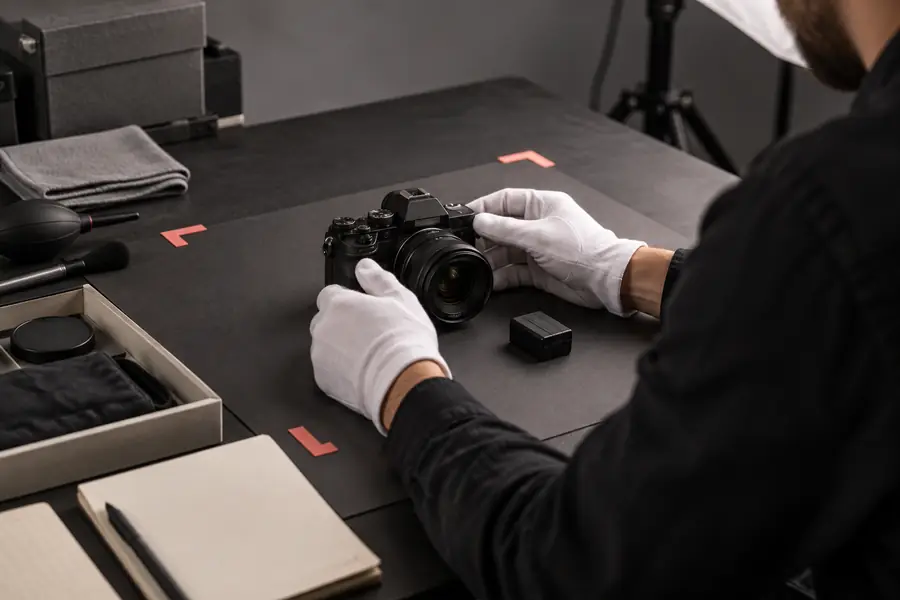

Check edges before you publish or share.
Make a careful start
When the image is ordinary, authorized, and not confidential, start with a copy and review the result before using it in public work. For sensitive material, keep the file in a local or approved workflow instead.
FAQ
It can be reasonable for ordinary, low-sensitivity product photos when you are authorized to use the image. Keep the original, avoid unnecessary personal or confidential details, and inspect the exported result before publishing.
No, not unless the service is explicitly approved for that type of information. Use a local or organization-approved workflow, or create a redacted test image that removes identifying details.
The original should remain unchanged if you upload a copy, but the processed output can lose fine edges or details. Compare the result with the source and keep the original file available for corrections.
No. Transparency only describes the image's visual layer; it does not control storage, access, sharing, or downstream copies. Treat the exported file according to the sensitivity of the original image.
View it at full size, inspect hair, shadows, reflections, and thin edges, then confirm that no unwanted details or metadata remain. Also check the destination's access settings before sending or publishing it.